
%EF%B9%96width=1360&height=768&name=image%20(11).jpg)
In Part 1 and Part 2 of this series, we covered how to monitor resource saturation and cluster service health. In this final installment of the StarRocks Monitor & Alert Guide, we turn to application availability: the layer of monitoring that reflects what users and downstream systems actually experience.
At this stage, the cluster may appear healthy at the infrastructure and service level, but user-facing issues can still occur. Queries may begin to fail, latency may spike, ingestion pipelines may fall behind, or background operations such as materialized view refreshes and schema changes may stop completing successfully. These problems directly affect analytics freshness, dashboard reliability, and overall system usability.
This guide focuses on the key signals that help you detect those issues early. Specifically, this part covers how to monitor:
- Query stability, including query failures, connection pressure, per-user connection exhaustion, and query latency spikes.
- Write and ingestion health, including write failures, routine load consumption lag, and import transaction pressure.
- Background task reliability, including materialized view refresh failures and schema change failures.
The following table provides a quick reference for the alerts included in this guide and their suggested severity levels:
Part 3: Application Availability
|
Alert |
Section |
Severity |
|
Query Failures |
1.1 |
🟡 Warning |
|
Connection Count or QPS Overload |
1.2 |
🟡 Warning |
|
Per-User Connection Limit Exceeded |
1.3 |
🟡 Warning |
|
Query P95 Latency Spike |
1.4 |
🔴 Critical |
|
Write Failures |
2 |
🔴 Critical |
|
Routine Load Consumption Lag |
3 |
🟡 Warning |
|
Import Transactions Exceeding DB Limit |
4 |
🟡 Warning |
|
Materialized View Refresh Failures |
5 |
🟡 Warning |
|
Schema Change Failures |
6 |
🟡 Warning |
1. Query Service Anomalies
1.1 Query Failures (🟡 Warning)
PromQL:
sum by (job,instance)(starrocks_fe_query_err_rate{job="$job_name"}) * 100 > 10

# Supported starting from versions v3.1.15, v3.2.11, and v3.3.3.
increase(starrocks_fe_query_internal_err{job="$job_name"})[1m] > 10
🚨 Alert condition:
An alert is triggered when the query failure rate exceeds 0.1/second, or when the number of new query failures within 1 minute exceeds 10.
🧰 Troubleshooting:
When this alert fires, you can start by checking the logs to identify which queries are returning errors:
grep 'State=ERR' fe.audit.log
If the AuditLoader plugin is installed, you can query the failed entries directly:
SELECT stmt FROM starrocks_audit_db__.starrocks_audit_tbl__ WHERE state='ERR';
Note that queries failing due to syntax errors, timeouts, and similar issues are also counted as failures in starrocks_fe_query_err_rate.
For queries that fail due to internal StarRocks kernel exceptions, retrieve the full exception stack trace from fe.log (search for the failing SQL statement) and refer to the Dump Query documentation for further investigation.
1.2 Connection Count or QPS Overload (🟡 Warning)
PromQL:
abs((sum by (exported_job)(rate(starrocks_fe_query_total{process="FE",job="$job_name"}[3m]))
-sum by (exported_job)(rate(starrocks_fe_query_total{process="FE",job="$job_name"}[3m] offset 1m)))
/sum by (exported_job)(rate(starrocks_fe_query_total{process="FE",job="$job_name"}[3m]))) * 100 > 100

abs((sum(starrocks_fe_connection_total{job="$job_name"})
-sum(starrocks_fe_connection_total{job="$job_name"} offset 3m))
/sum(starrocks_fe_connection_total{job="$job_name"})) * 100 > 100
🚨 Alert condition:
An alert is triggered when QPS or connection count increases by more than 100% compared to the previous period (within the last 1 minute).
🧰 Troubleshooting:
Review fe.audit.log to check whether frequently occurring queries are expected. If there are legitimate business-side changes, such as a new service going live or a significant increase in data volume, monitor machine resource utilization and scale out BE nodes as needed.
1.3 Per-User Connection Limit Exceeded (🟡 Warning)
PromQL:
sum(starrocks_fe_connection_total{job="$job_name"}) by(user) > 90
🚨 Alert condition:
An alert is triggered when a single user's connection count exceeds 90. (Per-user connection tracking is supported starting from versions v3.1.16, v3.2.12, and v3.3.4.)
🧰 Troubleshooting:
Run SHOW PROCESSLIST to verify whether the current connection count is expected, and use KILL to terminate any unexpected connections. Afterward, check whether connections are being held open for extended periods due to improper usage on the application side. You can also accelerate automatic cleanup of idle connections by adjusting the wait_timeout system variable (in seconds):
SET wait_timeout = 3600;
As an emergency measure to restore service quickly, raise the connection limit for the affected user:
Versions v3.1.16, v3.2.12, v3.3.4 and later:
ALTER USER 'jack' SET PROPERTIES ("max_user_connections" = "1000");
Versions v2.5 and earlier:
SET PROPERTY FOR 'jack' 'max_user_connections' = '1000';
1.4 Query P95 Latency Spike (🔴 Critical)
PromQL:
starrocks_fe_query_latency_ms{job="$job_name", quantile="0.95"} > 5000
🚨 Alert condition:
An alert is triggered when the P95 query latency exceeds 5 seconds.
🧰 Troubleshooting:
1. Check for large queries. Investigate whether there were any resource-intensive queries during the time when the monitoring metrics became abnormal. Large queries may consume significant system resources, causing other queries to timeout or fail.- You can run the SHOW PROC '/current_queries' command to identify long-running queries and obtain their QueryId. If you need to restore service quickly, you can use the KILL statement to terminate the longest-running queries.
- Alternatively, you may restart BE nodes with high CPU utilization to relieve system pressure.
⚠️ Emergency Handling:
In urgent situations, the following actions can help restore service quickly:
- Traffic spike causing resource saturation: If query failures result from a sudden surge in traffic, temporarily reduce incoming workload and restart the affected BE nodes to clear queued queries.
- Sustained high resource utilization: If alerts are triggered because the cluster is consistently running at capacity, consider scaling out the cluster by adding additional nodes.
2. Write Failures (🔴 Critical)
PromQL:
rate(starrocks_fe_txn_failed{job="$job_name",instance="$fe_master"}[5m]) * 100 > 5
🚨 Alert condition:
An alert is triggered when failed ingestion transactions exceed 5% of the total transactions.
🧰 Troubleshooting:
Check the Leader FE logs for ingestion-related errors. Search for entries containing the keyword status: ABORTED to identify failed ingestion tasks. For example:
... transaction status: ABORTED, ... reason: [E1008]Reached timeout=30000ms @192.168.1.1:8060 ... successfully rollback
Common case:
errmsg=[E1008]Reached timeout=300000ms @10.128.8.78:8060
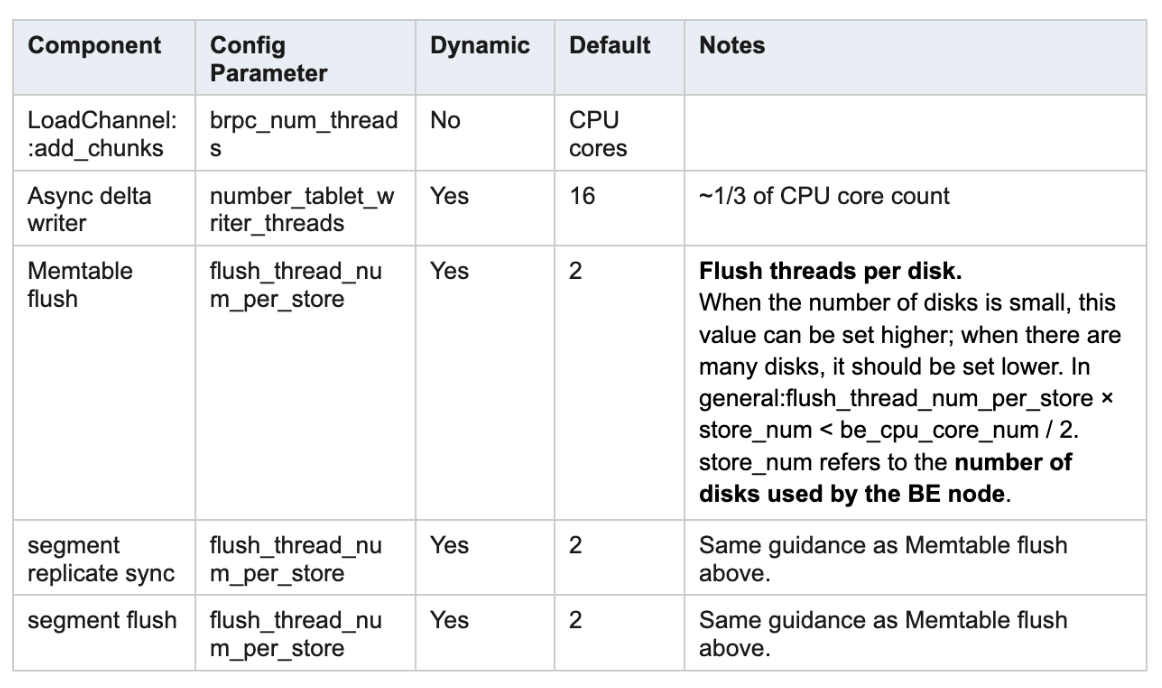
Check the BE LOAD section in the Grafana dashboard to see whether any queues are saturated or whether any write stages have unusually high latency.
⚠️ Emergency Handling:
If a large number of error alerts are firing, try restarting the leader FE or the BE nodes reporting write errors.
3. Routine Load Consumption Lag (🟡 Warning)
PromQL:
(sum by (job_name)(starrocks_fe_routine_load_max_lag_of_partition{job="$job_name",instance="$fe_master"})) > 300000

starrocks_fe_routine_load_jobs{job="$job_name",host="$fe_master",state="NEED_SCHEDULE"} > 3

starrocks_fe_routine_load_jobs{job="$job_name",host="$fe_master",state="PAUSED"} > 0
🚨 Alert condition:
- An alert is triggered when the consumption lag exceeds 300,000 messages.
- An alert is triggered when the number of Routine Load jobs pending scheduling exceeds 3.
- An alert is triggered when any job is in the PAUSED state.
🧰 Troubleshooting:
1. First, check whether the Routine Load job is in RUNNING state:SHOW ROUTINE LOAD FROM $db; #Pay attention to the State field
2. If the Routine Load job is in PAUSED state: Review the ReasonOfStateChanged, ErrorLogUrls, or TrackingSQL fields returned in the previous step. In most cases, running the SQL specified in TrackingSQL will reveal the specific error message.
3. If the Routine Load job is in RUNNING state: Try increasing the parallelism. The concurrency of a single Routine Load job is determined by the minimum of the following four values:
-
kafka_partition_num — the number of partitions in the Kafka topic
-
desired_concurrent_number — the parallelism configured for the job
-
alive_be_num — the number of live BE nodes
-
max_routine_load_task_concurrent_num — an FE configuration parameter, default value is 5
 ALTER ROUTINE LOAD FOR ${routine_load_jobname}
 PROPERTIES
 (
 "desired_concurrent_number" = "5"
 );
4. Import Transactions Exceeding DB Limit (🟡 Warning)
PromQL:
sum(starrocks_fe_txn_running{job="$job_name"}) by(db) > 900
Note: The starrocks_fe_txn_running metric is supported starting from versions v3.1.16, v3.2.12, and v3.3.5.
🚨 Alert condition:
An alert is triggered when the number of active import transactions for a single database exceeds 900 (90 for versions prior to v3.1).
🧰 Troubleshooting:
This alert is typically caused by a large number of new import jobs or slow write transactions. As a temporary measure, increase the per-database transaction limit:
ADMIN SET FRONTEND CONFIG ("max_running_txn_num_per_db" = "2000");
If the issue is caused by slow writes, investigate the write stage using the following steps.
Slow Write Performance
If write operations become slow, search the Leader FE logs for transaction statistics related to the affected transactions, or enable profiling for further analysis.
🔎 Common Cause 1 — Slow Write Stage
Example log:
... write cost: 6750ms, wait for publish cost: 126ms, publish rpc cost: 147ms ...
From the log above, most of the time is spent during the write phase: write cost: 6750ms. This indicates that the bottleneck occurs during the data write stage.
You can further investigate the BE LOAD panel in the Grafana monitoring dashboard. If the load queues are saturated, it may indicate that write throughput is insufficient, and the related parameters may need to be adjusted.
🔎 Common Cause 2 — Slow Publish for Primary Key Tables
A slow build index operation can cause publish to take longer than expected on Primary Key tables:
grep "build persistent index finish tablet" be.INFO | grep -E 'time: [0-9]{4,}ms'
This is currently being optimized. As a workaround, you can try disabling pre-loading with `skip_pk_preload = true` (in `be.conf`).
5. Materialized View Refresh Failures (🟡 Warning)
PromQL:
increase(starrocks_fe_mv_refresh_total_failed_jobs[5m]) > 0
🚨 Alert condition:
An alert is triggered when the number of materialized view refresh failures in the past 5 minutes exceeds 1.
🧰 Troubleshooting:
1. Identify which materialized views have failed:SELECT TABLE_NAME, IS_ACTIVE, INACTIVE_REASON, TASK_NAME
FROM information_schema.materialized_views
WHERE LAST_REFRESH_STATE != 'SUCCESS';
2. Try triggering a manual refresh:REFRESH MATERIALIZED VIEW ${mv_name};
3. If the materialized view is in INACTIVE state, try reactivating it:ALTER MATERIALIZED VIEW ${mv_name} ACTIVE;
4. Investigate the root cause of the failure:SELECT * FROM information_schema.task_runs WHERE task_name = 'mv-112517' \G
6. Schema Change Failures (🟡 Warning)
PromQL:
increase(starrocks_be_engine_requests_total{job="$job",type="schema_change", status="failed"}[1m]) > 1
🚨 Alert condition:
An alert is triggered when the number of failed Schema Change tasks in the past 1 minute exceeds 1.
🧰 Troubleshooting:
First, check whether the Msg field in the output of the following command contains any relevant error information:
SHOW ALTER COLUMN FROM $db;
If no error message is found, search the leader FE logs for context around the `JobId` returned in the previous step.
🔎 Common Cause 1 — Insufficient Memory for Schema Change
You can check the be.WARNING logs around the corresponding time to see whether messages such as the following appear:
- failed to process the version
- Failed to process the schema change from tablet
- Memory of schema change task exceed limit
Review the surrounding log context and look for entries related to: fail to execute schema change.
Example Error Log:
fail to execute schema change: Memory of schema change task exceed limit.
DirectSchemaChange Used: 2149621304, Limit: 2147483648.
This error occurs when the memory used by a single schema change task exceeds the default limit of 2 GB. The limit is controlled by the following BE configuration parameter:
|
Parameter |
Description |
Default |
|
memory_limitation_per_thread_for _schema_change |
Maximum memory allowed for a single schema change task |
2 GB |
You can increase the limit with the following command:
UPDATE information_schema.be_configs
SET value = 8
WHERE name = "memory_limitation_per_thread_for_schema_change";
🔎 Common Cause 2 — Schema Change Timeout
Schema Change works by creating a set of new tablets and rewriting the original data into them. A timeout may appear as:
Create replicas failed. Error: Error replicas:21539953=99583471, 21539953=99583467, 21539953=99599851
Increase the tablet creation timeout:
ADMIN SET FRONTEND CONFIG ("tablet_create_timeout_second" = "60"); #Default: 10
Increase the number of tablet creation threads:
UPDATE information_schema.be_configs SET value = 6
WHERE name = "alter_tablet_worker_count";
Increase the number of tablet creation threads:
UPDATE information_schema.be_configs SET value = 6
WHERE name = "alter_tablet_worker_count";
🔎 Common Cause 3 — Tablets with Abnormal Replicas
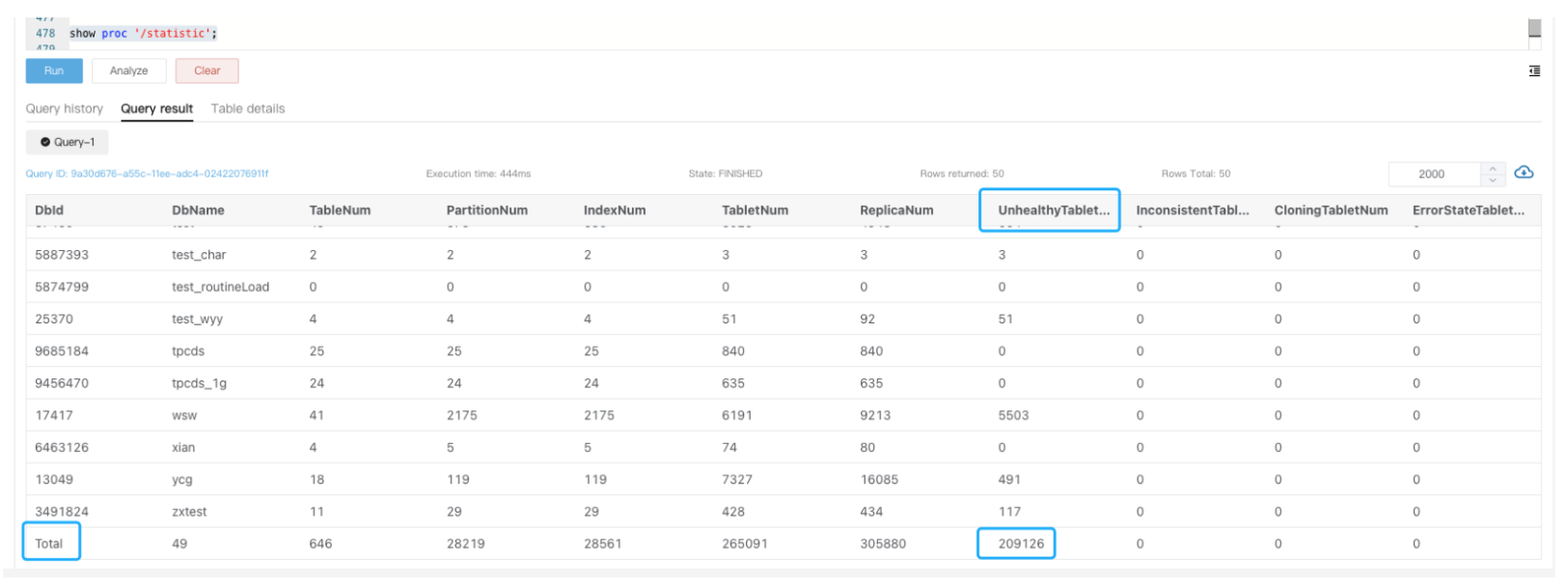
Search be.WARNING logs for the message tablet is not normal. You can also run SHOW PROC '/statistic' in the editor to view the cluster-level UnhealthyTabletNum.
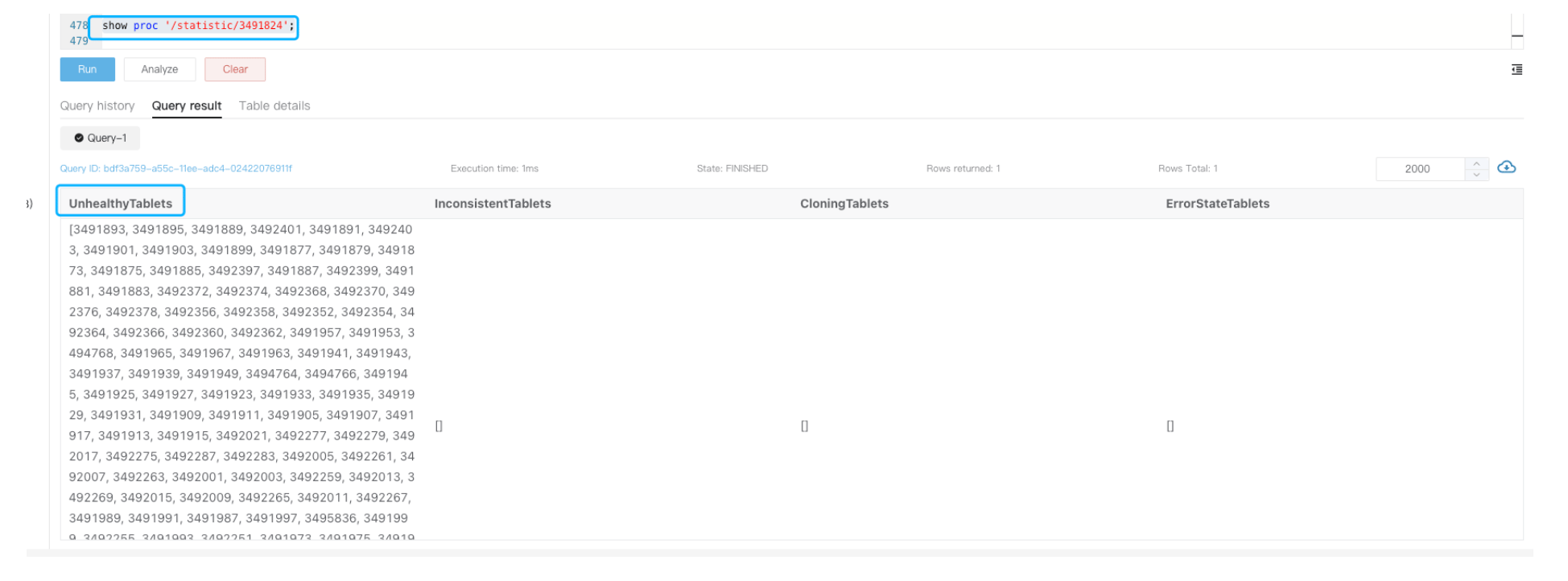
Next, check the unhealthy tablets within a specific database by running show proc '/statistic/Dbid' :
To investigate a specific tablet, run: SHOW TABLET <tablet_id>;
Then execute the command returned in the DetailCmd field to further analyze the cause of the unhealthy replica.

In general, unhealthy or inconsistent replicas are caused by high-frequency data ingestion. If a table is receiving large volumes of real-time writes, the replicas may temporarily become inconsistent due to write progress differences across the three replicas.
In such situations, reducing the ingestion frequency or briefly pausing the workload usually allows the replicas to recover. After the system stabilizes, you can retry the failed task.
⚠️ Emergency Handling:
- After a task failure, use the steps above to investigate the root cause before retrying.
- Production environments strictly require 3-replica configurations. If exactly one tablet has an abnormal replica (and the other two are healthy), you can force-mark it as BAD to trigger repair (ensure that the other replicas are healthy before doing this).
What’s Next
That wraps up the series. Across the three parts: resource saturation (Part 1), cluster service health (Part 2), and application availability (Part 3). You now have comprehensive monitoring coverage for StarRocks, from infrastructure-level early warnings all the way to user-facing query and ingestion health.
For a complete walkthrough on setting up Prometheus and Grafana with StarRocks, including installation, dashboard templates, and alert rule configuration, see the official monitoring and alerting documentation.
💬 Join the StarRocks Community
Have questions or want to share how you’ve set up monitoring in your environment? Join the StarRocks community on Slack — it’s where the team and thousands of users discuss real-world deployments, troubleshooting, and best practices.